
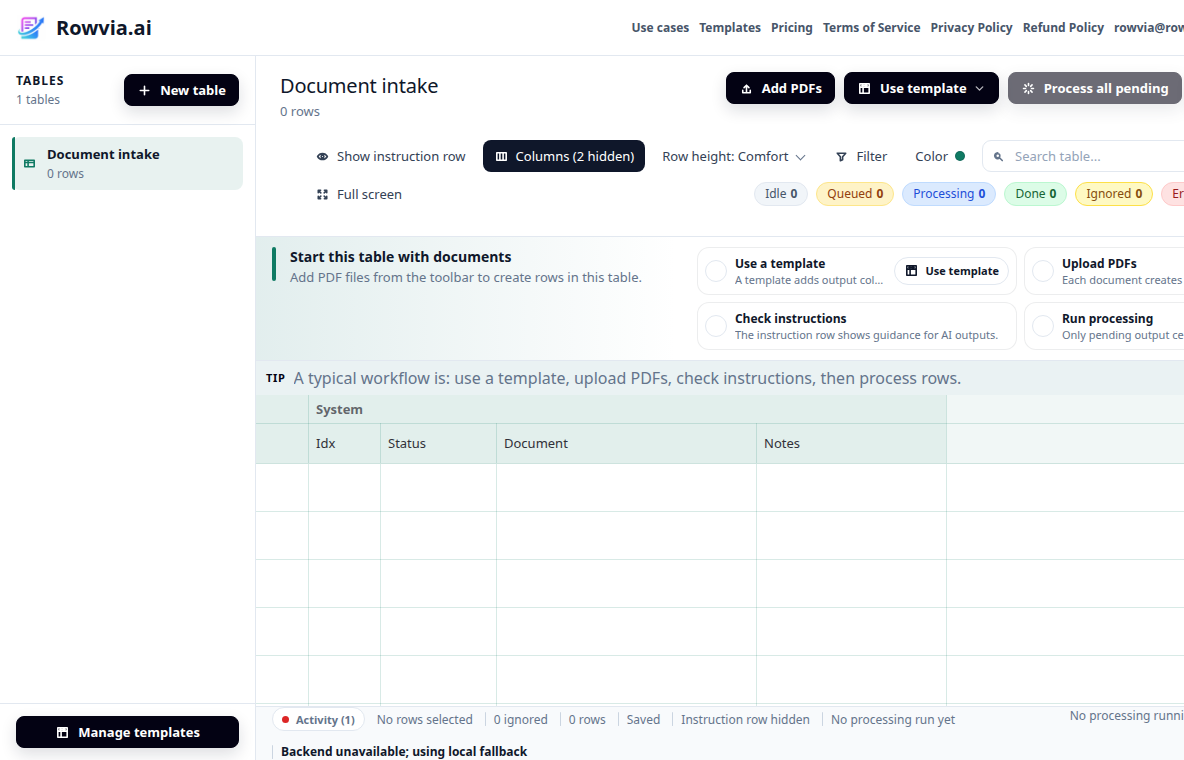
Open the template manager
Click Manage templates in the left panel. The button sits at the bottom-left below the table list and opens built-in templates plus your own saved templates.
A custom template is a set of output columns and instructions that tells Rowvia how to process similar documents or text sources into one table. Start from a built-in template, edit it as Markdown, and test it on your own sources.
Choose the built-in template that is closest to your document type, copy it into your own templates, then adjust column names and instructions. You do not need to start from scratch: keep the general rules for missing values, exact amounts, dates, and uncertain data.
Rowvia uses a simple structure: the first heading is the template name, the paragraph below it is the global instruction, and each second-level heading creates one output column. An optional frontmatter header can set description, category, and categoryName; column headings can also include a width such as {width=220}, a fixed choice list with valueMode=fixed_enum values="A|B", or a controlled vocabulary with valueMode=controlled_vocabulary.
After sign-in, open Templates and choose Custom template from Markdown. The app does not support a direct template deep link yet, so this safely opens the app start.
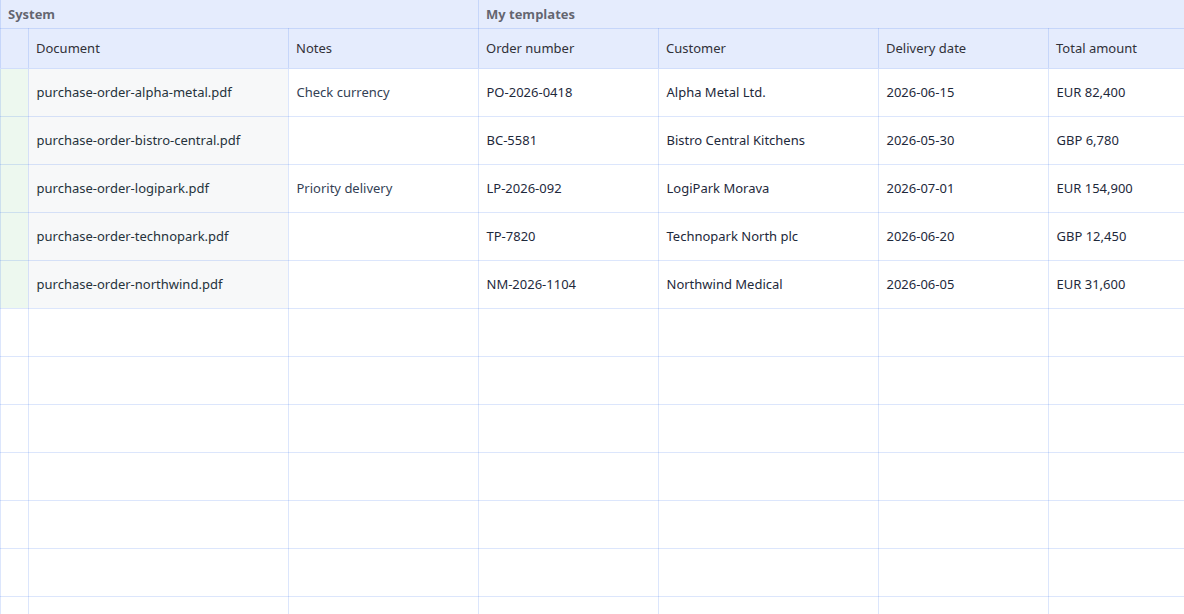
Start from a similar built-in template, adjust the columns, test 2-3 typical sources, and save the setup as your own workflow for reuse in the app or through API/MCP.
Click Manage templates in the left panel. The button sits at the bottom-left below the table list and opens built-in templates plus your own saved templates.
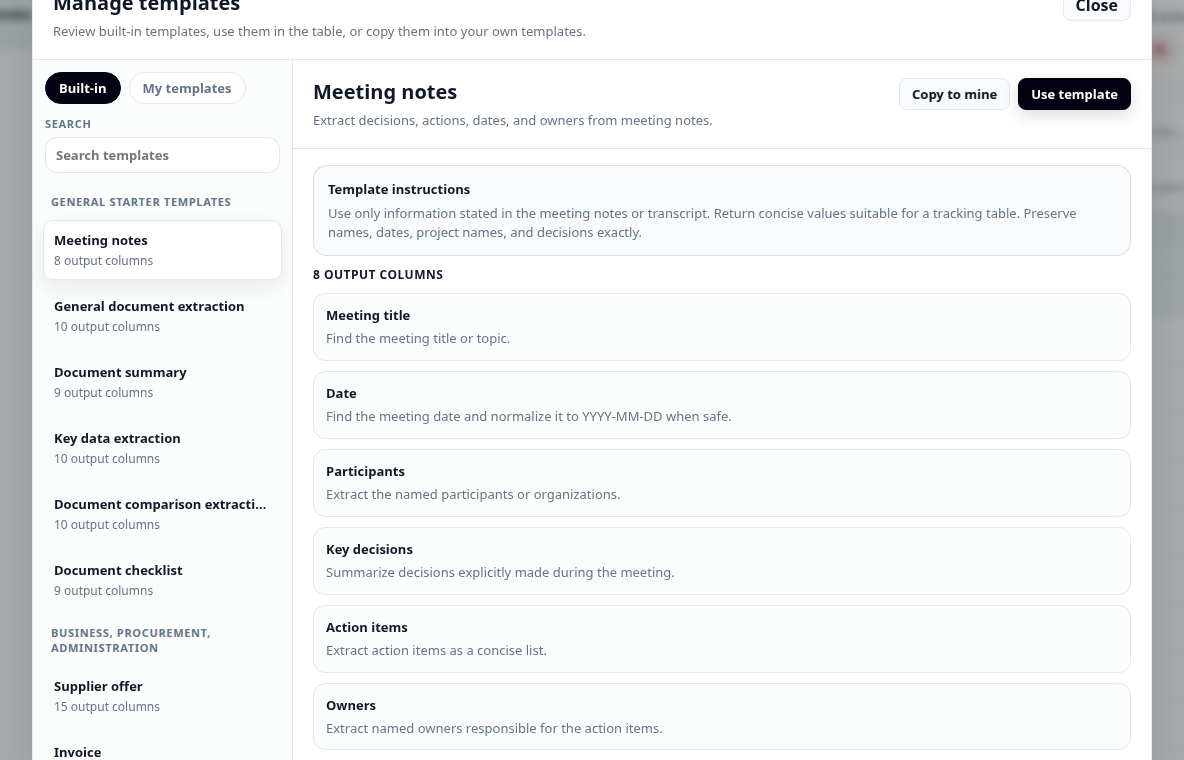
Find a similar template, review its columns, and click Copy to mine. The copied template is a safe starting point for your own changes.
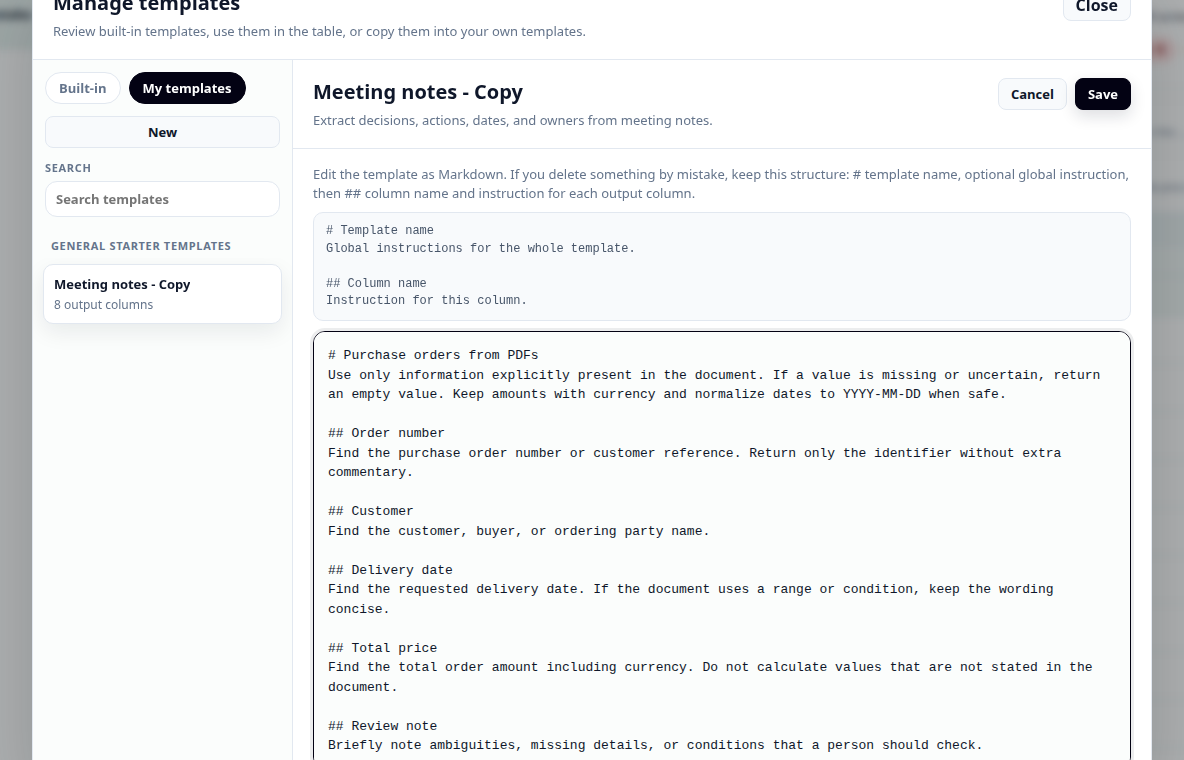
Each ## heading creates a column. Adjust instructions, widths, and the template header, then save the template first and use it in the table afterwards.
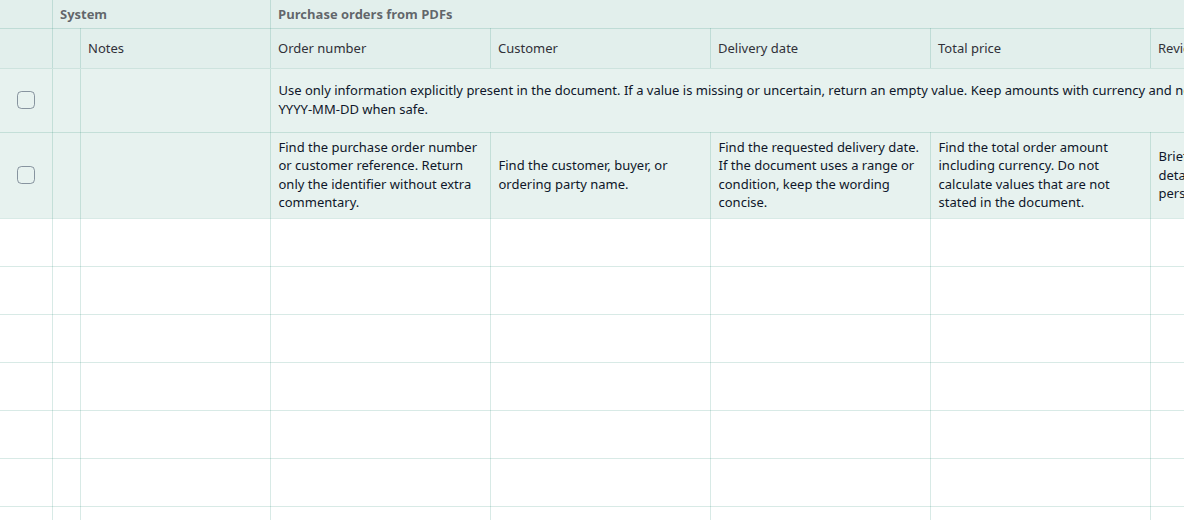
After applying the template, Rowvia adds instructed columns to the table. You can still edit them before processing rows.
Rowvia uses a simple structure: the first heading is the template name, the paragraph below it is the global instruction, and each second-level heading creates one output column. An optional frontmatter header can set description, category, and categoryName; column headings can also include a width such as {width=220}, a fixed choice list with valueMode=fixed_enum values="A|B", or a controlled vocabulary with valueMode=controlled_vocabulary.
---
description: Template for incoming purchase orders in documents, URLs, or text.
category: custom-templates
categoryName: My templates
---

# Purchase orders from sources
Use only information explicitly present in the source. If a value is missing or uncertain, return an empty value.

## Order number {width=180}
Find the purchase order number or customer reference. Return only the identifier.

## Customer {width=220}
Find the customer, buyer, or ordering party name.

## Order status {width=170 valueMode=fixed_enum values="Confirmed|Pending confirmation|Canceled|Not found"}
Return exactly one allowed value based on the status shown in the source.

## Item category {width=220 valueMode=controlled_vocabulary}
Return a short item category. If a similar category already exists, reuse the same name.
You can use an AI chat to draft the first Markdown version. Do not send sensitive documents or personal data; describe the document type, anonymized field examples, and the output you need.
I want to create a Rowvia template in Markdown format.

Format:
---
description: Short template description
category: custom-templates
categoryName: My templates
---

# Template name
Global instructions

## Column name {width=220}
Instruction for this column

## Status {width=160 valueMode=fixed_enum values="Yes|No|Not found"}
Return exactly one allowed value: Yes, No, or Not found.

## Category {width=220 valueMode=controlled_vocabulary}
Return a short category. If a similar category already exists, reuse the same name.

Notes: The value in {width=220} is the default variable column width in pixels (px). Common values are roughly 140 to 320 depending on content length. Omit valueMode for normal free-text output. For fixed choices use valueMode=fixed_enum values="A|B|C" and instruct the model to return exactly one allowed value. For repeated categories or labels use valueMode=controlled_vocabulary; Rowvia injects already used values while processing the row, so do not put those values into the template.

Documents I process:
[describe the document type without sensitive data]

Fields I need to extract:
[list fields]

Draft a template with concise column names, practical column widths, and clear instructions. If a value is not present in the document, the instruction should say to return an empty value.
Do not paste full contracts, invoices, healthcare documents, personal data, non-public prices, or internal business terms. For a template draft, a general document description, anonymized structure, and the list of required fields is usually enough.
Not always. The fastest path is to copy a similar built-in template and adjust only the column names and instructions. An AI chat can help with a first draft that you review in Rowvia.
This step does not add a separate file import flow. You edit the template directly in the template manager as Markdown text. For API or MCP workflows, first apply the template in the app and then add sources to that prepared table.
A good instruction says which value to find, how to return it in one cell, and what to do when the value is missing or uncertain.
Yes. The Markdown frontmatter can include description, category, and categoryName. In a column heading, use a pattern such as ## Amount {width=180} so the applied table has a more practical layout.
Open the app and adjust fields directly in the table, or return to the built-in template catalog.