
Article title
Extract the article title.
A starting structure for reviewing web articles, product pages, public URLs, and pasted page text.
Marketing, sales, or research teams often need to compare many public pages without copying values by hand. This template turns each primary URL or pasted text source into one row by default with fields for source, topic, quote, sentiment, and reference.
Add public URLs or pasted page text, choose the media monitoring template, run processing, and review whether each page was accessible and the extracted values match the source.
After sign-in, open Templates and choose Web pages. The app does not support a direct template deep link yet, so this safely opens the app start.
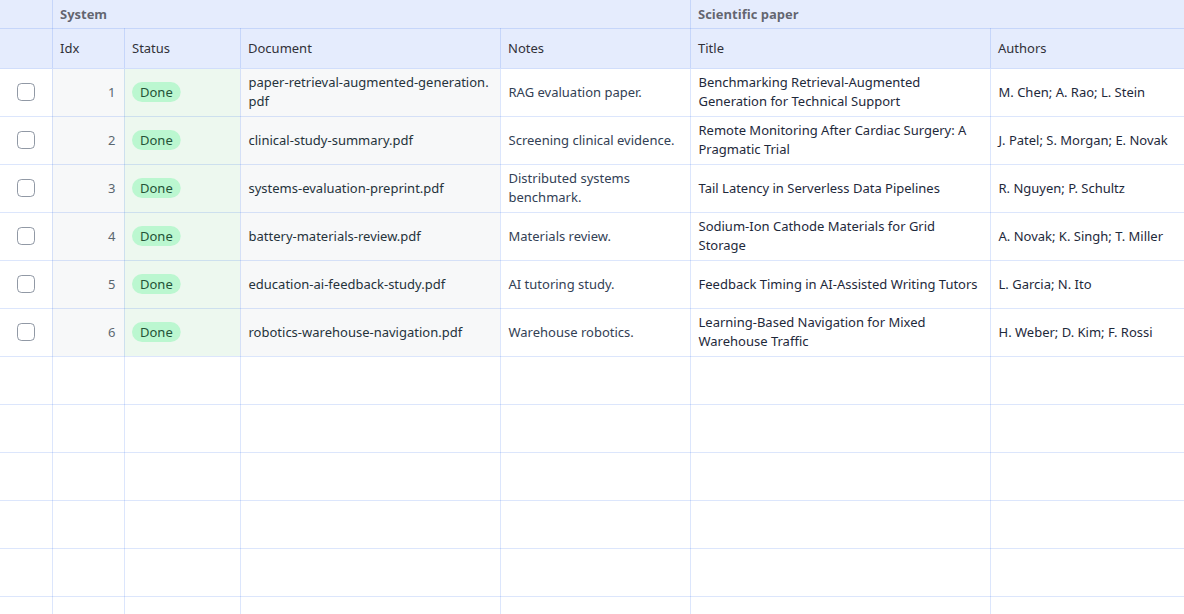
The Web pages template prepares columns such as Article title, Source, Author, Publication date, Mentioned brand. You can adjust the fields or add custom questions.
After sign-in, copy the template to your own templates, rename columns, adjust instructions, and add custom questions. Test it on a few typical sources before using it repeatedly.
Each output column has its own instruction. The examples below are shortened, but they come from the actual built-in template.
Extract the article title.
Extract publication, outlet, website, or programme.
Extract author or byline if stated.
The template works well for adding several similar documents or text sources in a batch. Each primary source becomes one table row by default, and related attachments can stay with it.
The sample values are synthetic. Always check important values against the original source.
| Source | Article title | Source | Author | Publication date | Mentioned brand |
|---|---|---|---|---|---|
| https://example.com/blog/market-update | service package | stated in source | stated in source | 2026-06-14 | stated in source |
| https://example.com/products/industrial-pump | equipment supply | value to verify | value to verify | 2026-06-21 | value to verify |
| https://example.com/news/supplier-announcement | review overview | fill after review | fill after review | 2026-07-02 | fill after review |
It is a starting setup for processing similar documents or text sources into a table. Rowvia prepares one row per primary source by default, keeps related attachments with it when useful, and creates columns based on this template.
Yes. The template is only a starting point. You can edit, remove, or add columns with your own questions for the fields you need.
Typical fields include Article title, Source, Author, Publication date. Important values should be checked against the original source before use.
No. The output is a working table for review and export. Accounting, legal, insurance, public-sector, or technical decisions still require checking important values in the original document.
Open the app, run the demo, or review the workflow this template supports.