
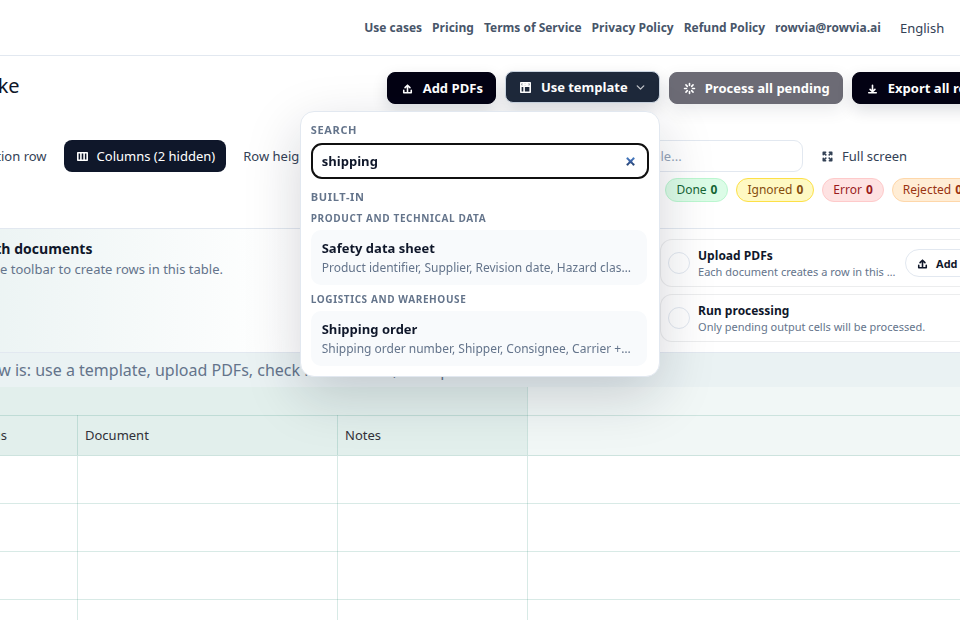
Choose a template
Start with a prepared template for the workflow. The columns and instructions match the selected use case.
Turn shipping orders and transport bookings into a table for route, date, carrier, and cargo checks.
A logistics coordinator receives transport bookings from several forwarders in different PDF layouts. Before confirming the weekly plan, the team needs the same fields for every shipment: order number, shipper, consignee, carrier, pickup, delivery, cargo, weight, and delivery terms. Rowvia.ai turns the documents into a review table.
Upload shipping order PDFs, choose the Shipping order template, and review one row per primary order by default. Related dispatch instructions or attachments can stay with it. The table is useful for operational checks before copying data into a transport system.
Open the shipping demoThe demo uses sample data. You will see how primary sources become rows by default, how related attachments can stay with them, how a template prepares columns, and how to review the result before export.
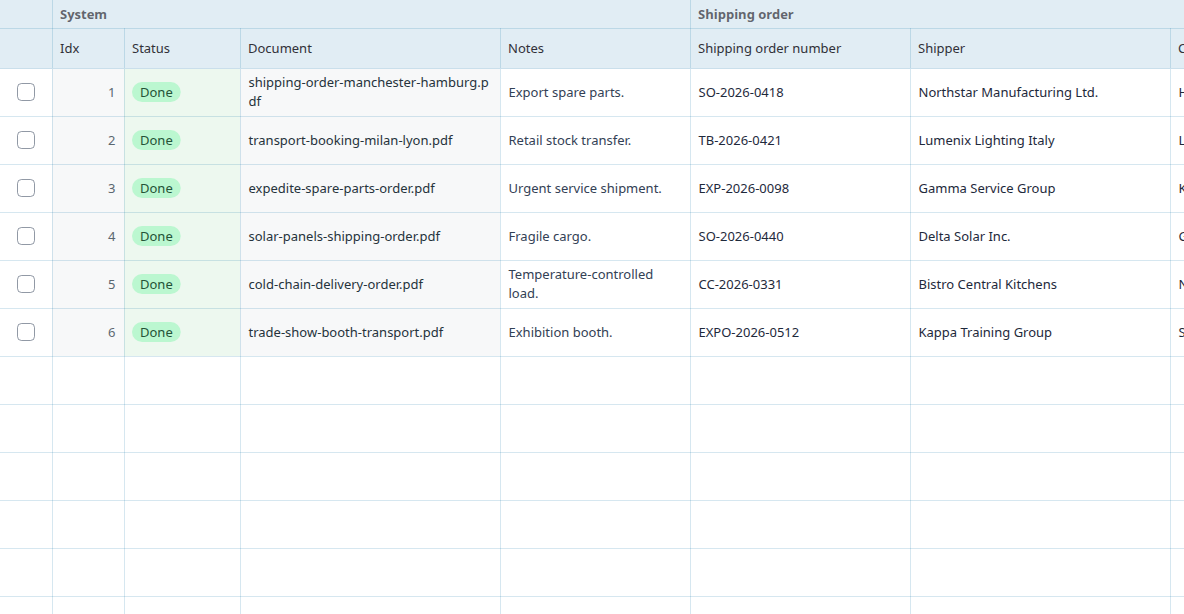
The template focuses on logistics fields that need to be checked before dispatch:
Open template detail
Start with a prepared template for the workflow. The columns and instructions match the selected use case.
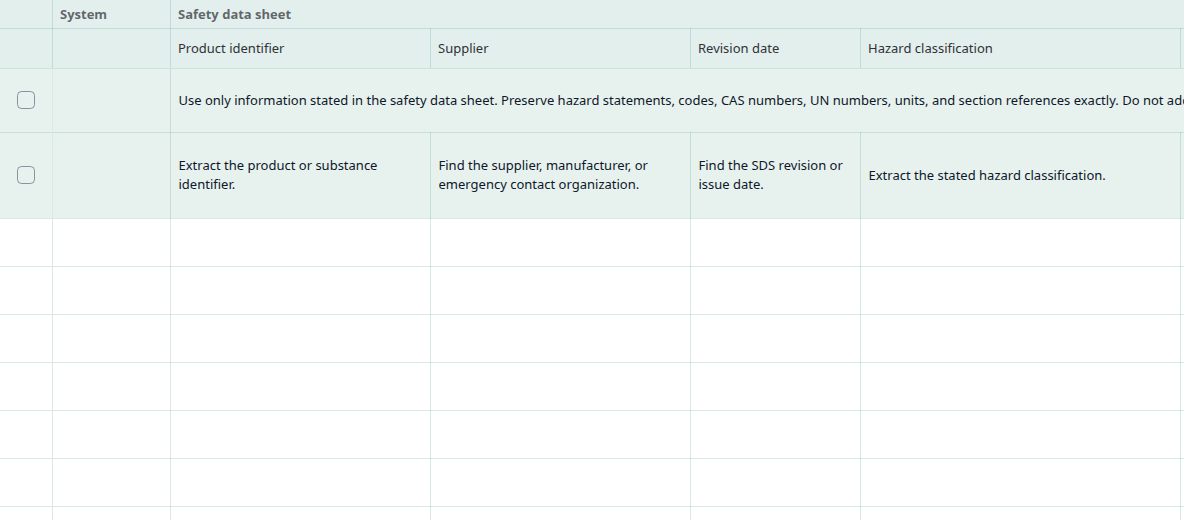
Each output column has its own instruction, so the result is structured table data instead of a loose summary. You can adjust the suggested columns or add custom ones for the fields you need.
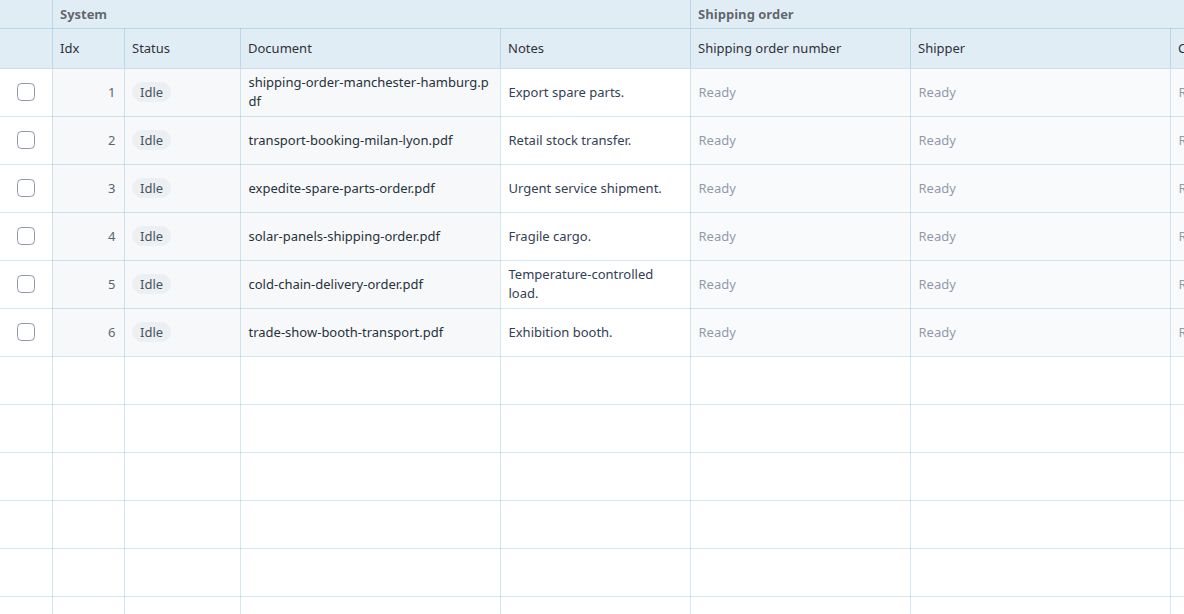
Upload files, add URLs, or paste text. Each primary source becomes one row by default; related attachments can stay on the same row.
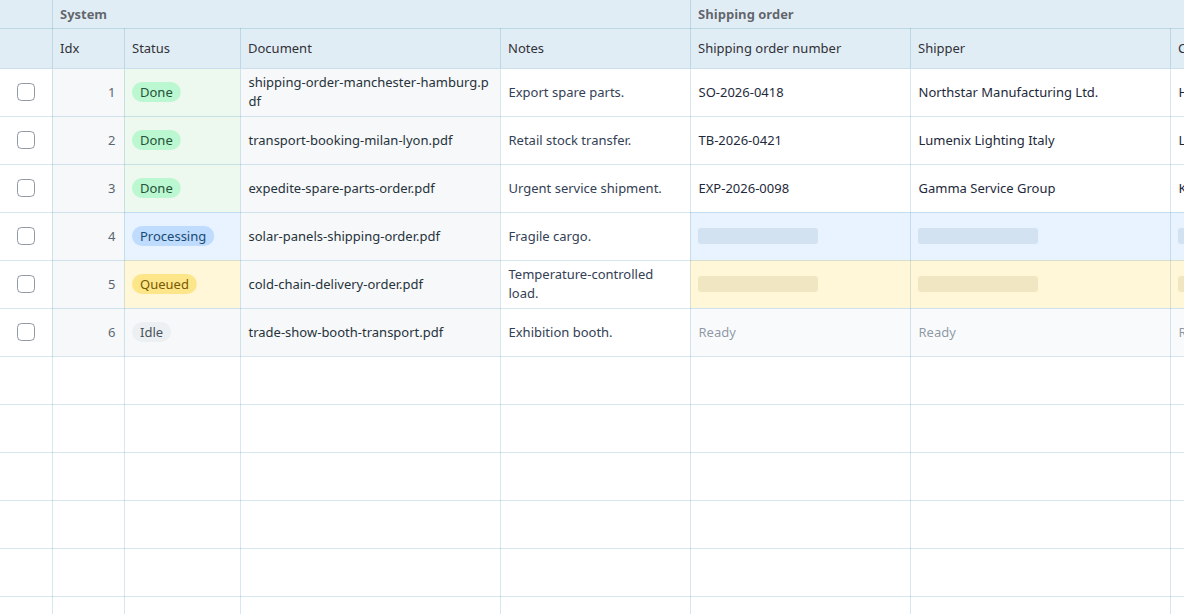
During processing, you can see what is done, what is waiting, and what is currently running. After completion, you can correct cells and export the table.
The demo uses synthetic file names, URLs, or text-source names and results. The same principle applies to your own primary sources; related attachments can be added to the same row.
The output is a table that works well in Excel or another review workflow. One row represents one primary source by default, related attachments can stay with it, and the columns describe the specific fields you want to extract. For shipping orders, this makes it easier to compare sources side by side without manual copying.
| Source | Shipping order number | Shipper | Consignee | Carrier | Pickup location |
|---|---|---|---|---|---|
| shipping-order-manchester-hamburg.pdf | stated in source | stated in source | stated in source | stated in source | stated in source |
| transport-booking-milan-lyon.pdf | value to verify | value to verify | value to verify | value to verify | value to verify |
| expedite-spare-parts-order.pdf | fill after review | fill after review | fill after review | fill after review | fill after review |
Rowvia is useful for a first structured overview, review, and export. It should not replace accounting, legal, insurance, or other expert decisions, and important values should be checked against the source document.
Ordinary OCR usually only reads text. In a shipping orders workflow, the more useful result is getting values into the same columns across several sources, so they can be compared, filtered, and handed off as a table.
Yes. Rowvia prepares a review table where each primary source becomes one row by default, related attachments can stay with it, and the columns match the selected workflow.
Typical fields include Shipping order number, Shipper, Consignee, Carrier. You can adjust the columns to match your process.
No. The output is a reviewable working table. Important legal, accounting, insurance, or compliance values should still be checked by the responsible person.
Yes. You can use a prepared template as a starting point, then adjust columns or add your own questions for the fields you need to extract.
This page is mapped to concrete long-tail queries and links onward to the matching template, pricing, or technical documentation.
Open the demo, use the related template, or compare similar document scenarios.